Map icons
Maps use icons to display points of interest (POIs), landmarks, road shields, and other features. Our visual editor Map Designer enables you to style these icons, change their color, outline, opacity, change the icon image, or use completely custom icons to get a fully personalized map.
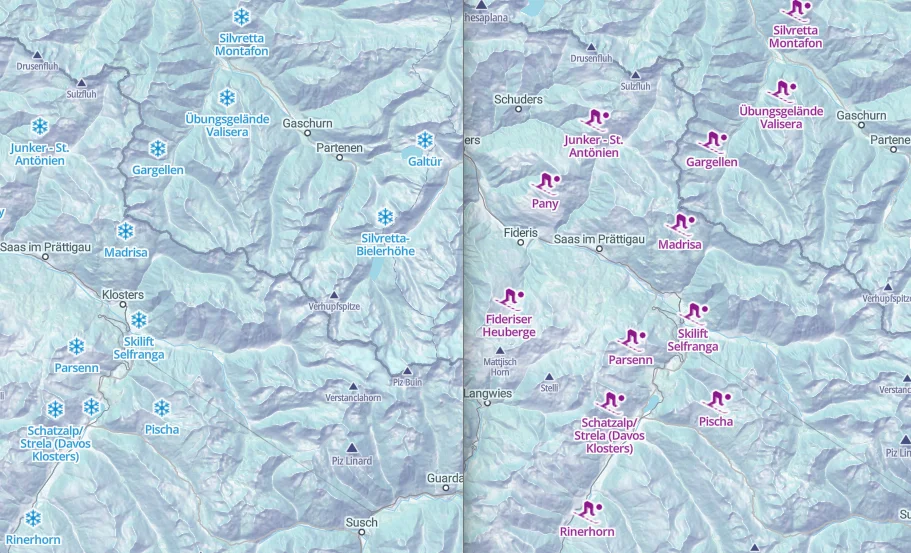
Winter map with standard catalog icons (left) and with custom icons
Style existing icons
Our maps come with professionally prepared icon sets that you can customize so that they fit your brand, theme, or intended visual style:
-
In your MapTiler account, page Maps, click on the map you want to use. It can be any map including custom.
-
Under the map preview, click Customize. This opens the map in Map Designer.
-
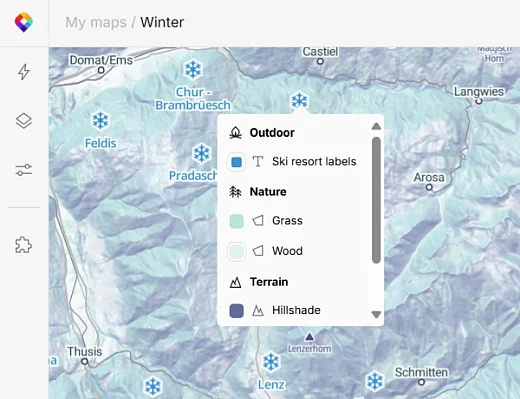
Go to menu Layers and open the block and layer which contains the icon you want to customize. If you’re not sure which layer it is, click on the icon in the map and you’ll get a list of blocks and layers in that spot. The icon layer is typically at the top.
-
Adjust icon properties as needed:
fill color,outline,opacity,size, andanchor(relative position of the icon and label). The change will apply to all instances of the icon in the map.
Change icon image
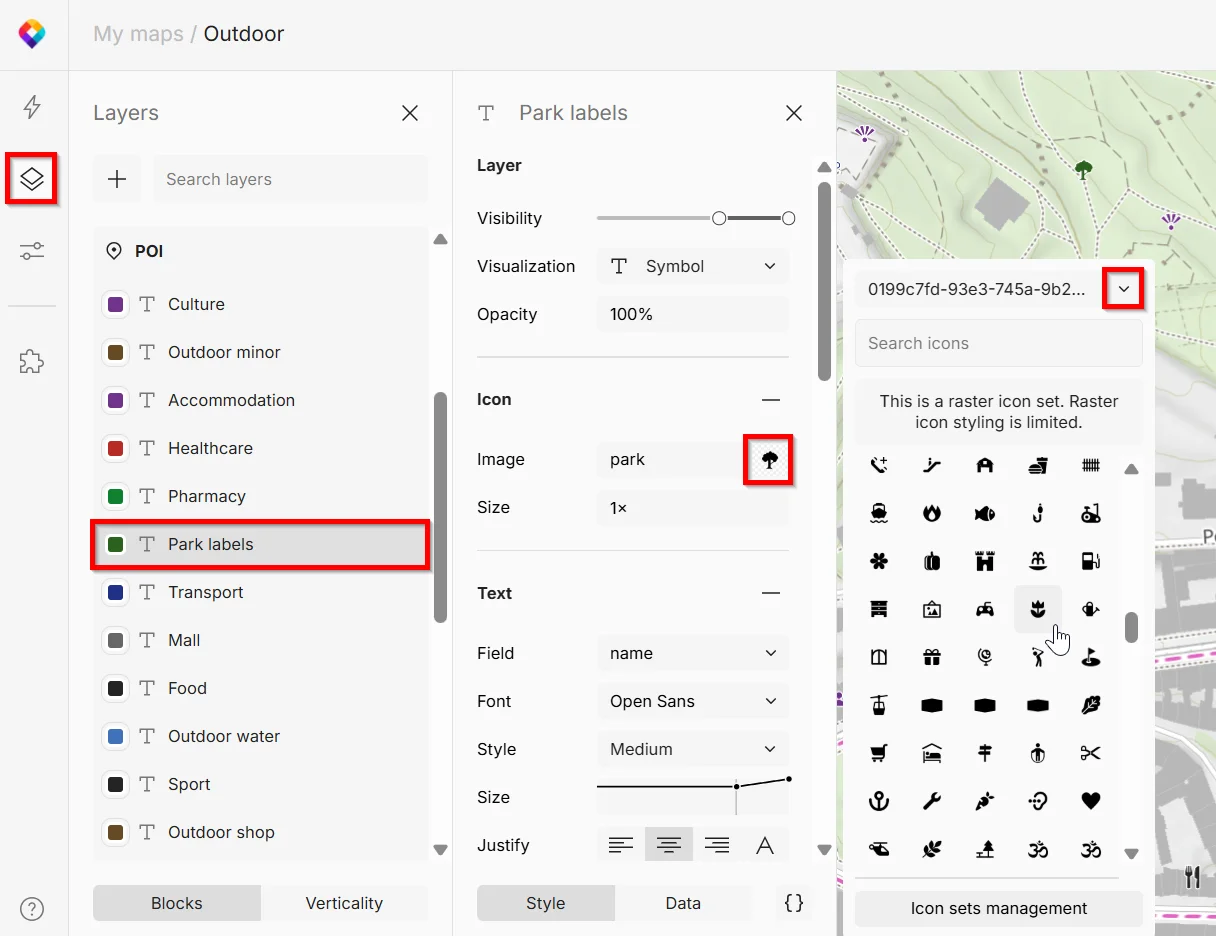
You can select a different image to use as a specific icon. For example, you may want to show parks in your map as a flower icon instead of the default tree. Here’s how to do it:
-
In your map, go to menu Layers and click on the map layer which contains the icon you want to replace.
-
In the layer panel, click on the icon. This opens a new panel showing the entire icon set for this map. Search it for the icon you want to use.
If the desired icon is not in the current icon set, switch sets using the drop-down menu above the search field. You can also switch to your own custom icon set after you upload one.
-
Click on the new icon to replace all instances of this icon in the map.
Prepare custom icons
If styling or swapping the existing icons isn’t enough, you can take the customization to next level and use your own, completely custom icons:
Tip
If you’re looking for a programmatic way to work with icons, check out the code examples.